 Work
 Personal


Display per space
Choose a preset or set your own resolution, screen orientation and target frame rate.
ANDROID VIRTUAL MACHINE
Create separate Android spaces for apps and accounts, and move files between them and your phone. Android 17 comes built into ZZSpace.
 Installs like an app. No root or flashing required.
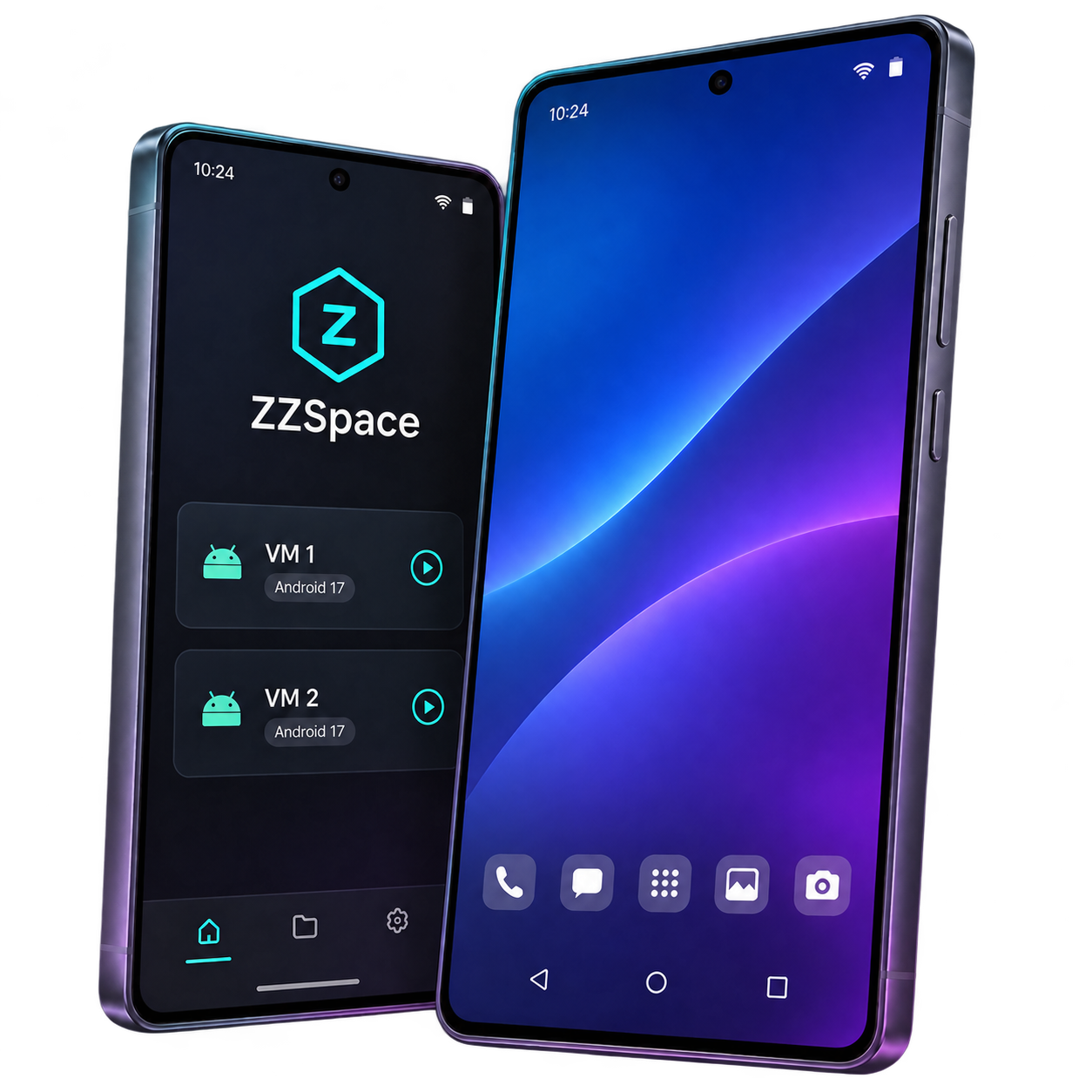
Set up different spaces for work, personal use or testing, each with its own apps and settings.
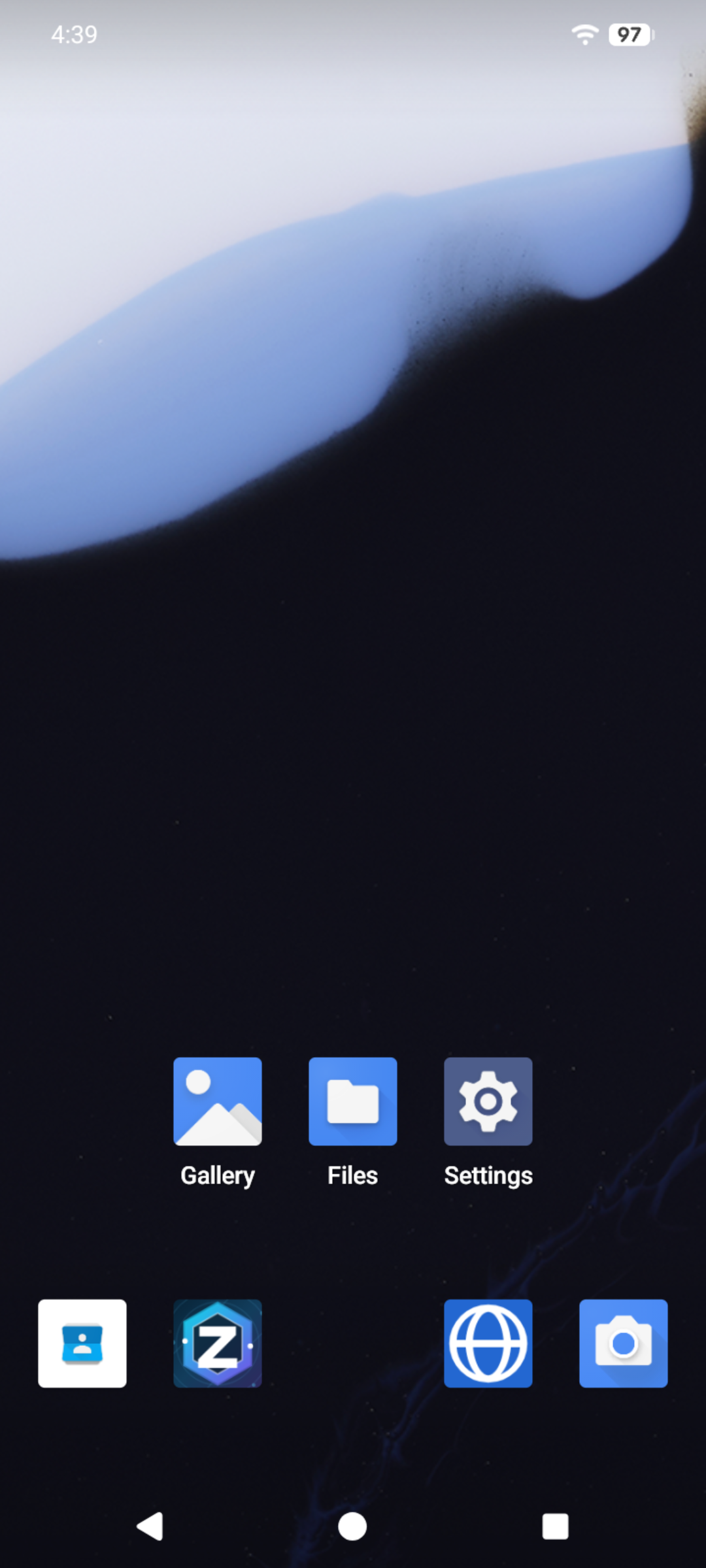
Each space has its own Android 17 home screen, apps and data.
Copy an entire VM with its apps and settings, or create app clones with separate accounts and data.
Move photos, documents and folders through the shared directory. Download/ZZSpace
Choose a preset or set your own resolution, screen orientation and target frame rate.

On supported devices, smart rendering tries the GPU first and falls back to the CPU if startup fails.

Choose which spaces can use the camera, microphone, location, sensors and clipboard.
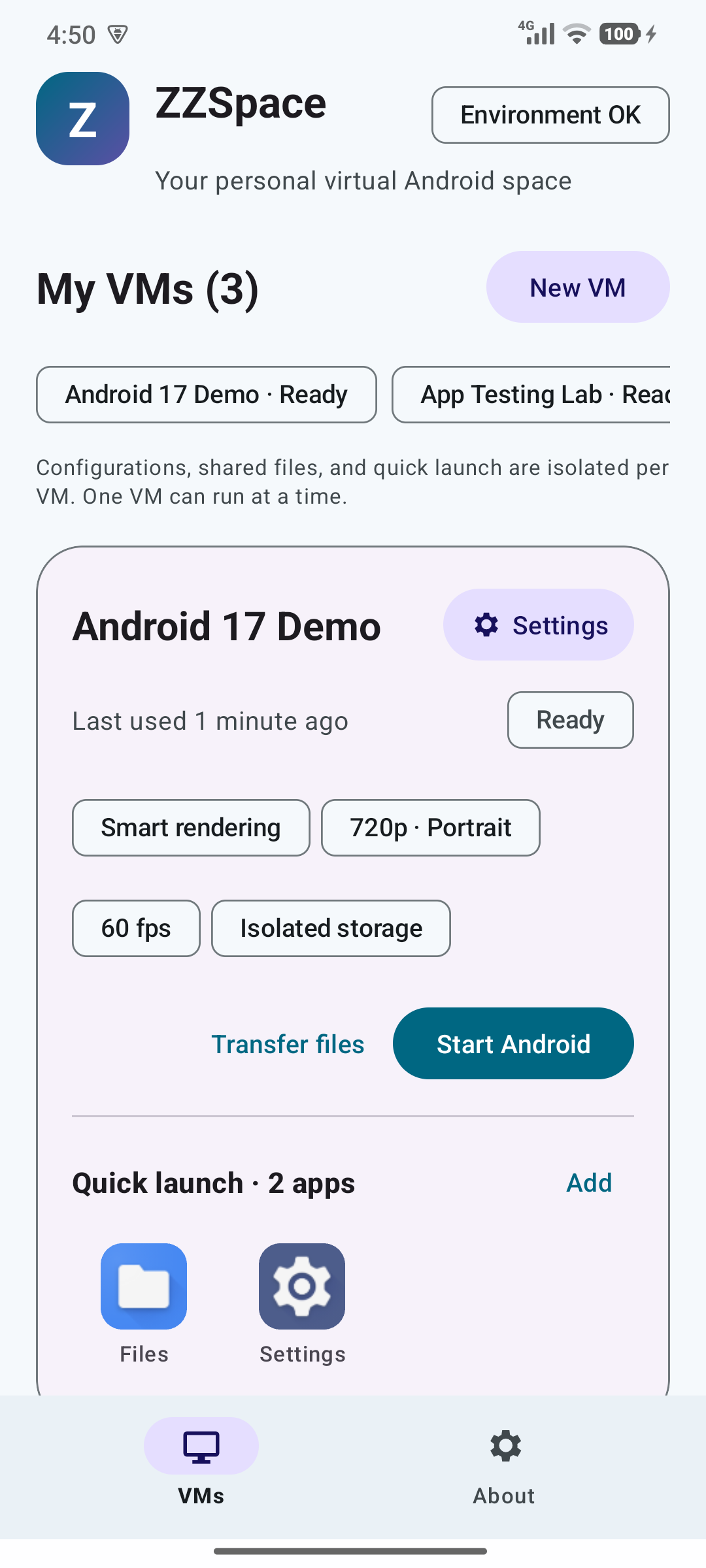
Pick a space and tap Start Android to open its Android 17 home screen.


Find official releases and release notes.
Set up your phone, then start your first virtual Android space.
Install the ARM64 app on your Android device.
Open ZZSpace and follow the first-time setup checks in the app.
First-time setup helpCreate a VM and tap Start Android to open the Android 17 home screen.
On Android 12 or later, tap Build number seven times, then open Developer options and turn on Disable child process restrictions. Return to ZZSpace to see the environment check.
Phone makers may move, rename or omit this switch. Open the child process item in ZZSpace’s environment check for device-specific guidance.
Use ZZSpace Helper to install Android 17-compatible APKs or import compatible apps from your phone. Apps with native libraries need ARM64 support.
A supported app can have up to 100 clones, each with its own sign-in and data.